Available now for Windows 10 / 11

Arab Power Digital Twin

The digital twin of power generation across the Arab world. More than 620 real power plants in 22 countries — gas, steam, nuclear, solar PV, concentrated solar, wind, hydro, diesel, coal and waste — each one explorable on an offline map, documented on its own page, and runnable as a live 3D simulation. With a complete exam and assessment system for universities on top.

14-day free trial Arabic & English Runs without internet Version 1.1.1
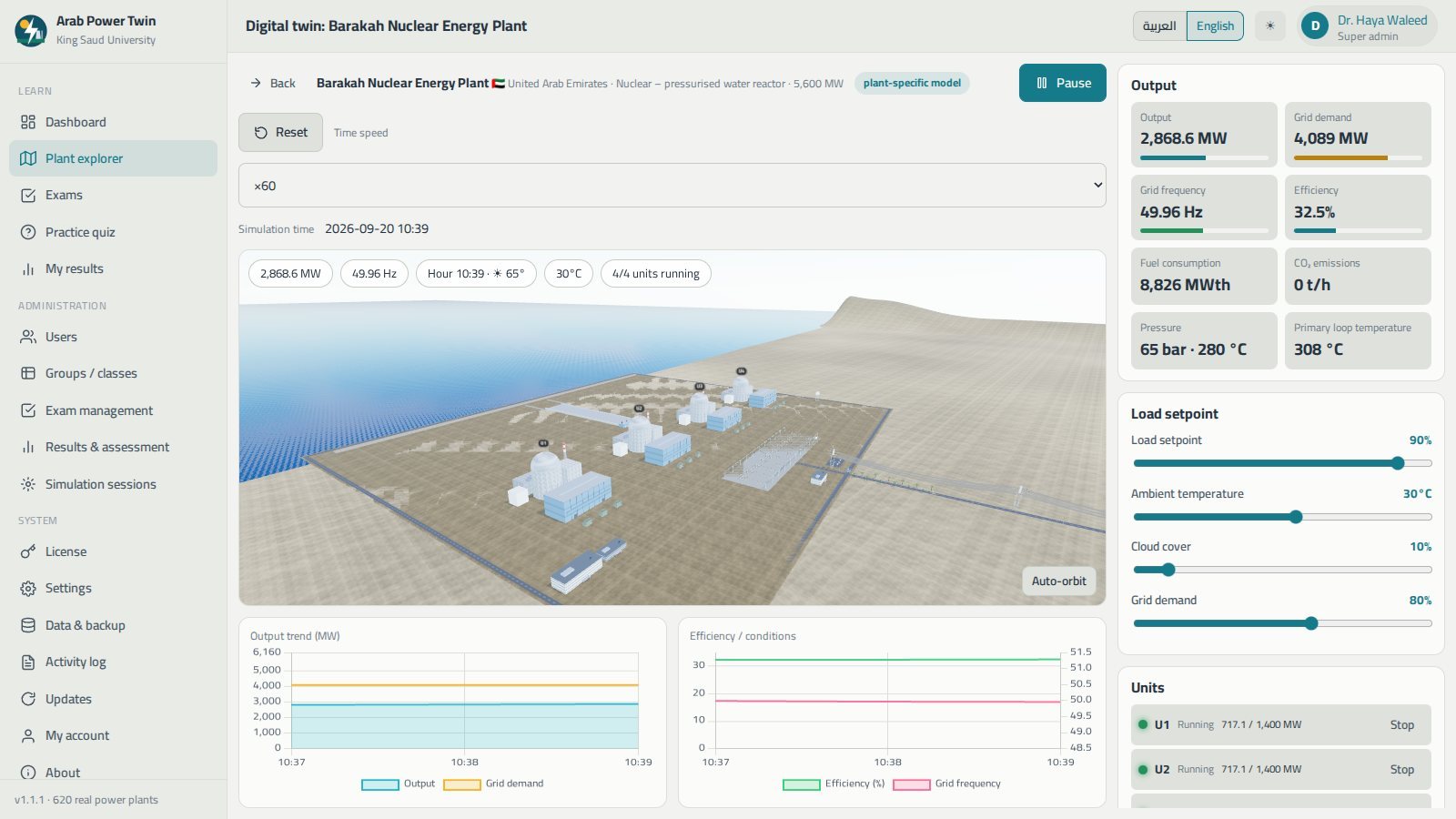
Arab Power Digital Twin — Digital twin: Barakah Nuclear Energy Plant
The digital twin of the Barakah nuclear energy plant in Arab Power Digital Twin, with the 3D site, live output and frequency indicators, load setpoint sliders and the list of running units
Barakah, UAE — 2,868.6 MW against 4,089 MW of grid demand, 49.96 Hz, four units running.
620+real power plants
22Arab countries
16generation technologies
362 GWof recorded capacity
3user roles
2interface languages
What is inside

A regional power atlas, a simulator and a gradebook

Built for engineering faculties and training centres that teach power generation in the Arab world — and want the examples to be local ones.

Plant explorer

Every plant in a searchable table beside an interactive map of the Arab world that works with no internet, with filters by country, energy source, technology, status and minimum capacity.

Plant pages

Overview, key facts, an explanation of the technology and its components, estimated annual generation, coordinates, the rest of the complex and the nearest plants.

Digital twin

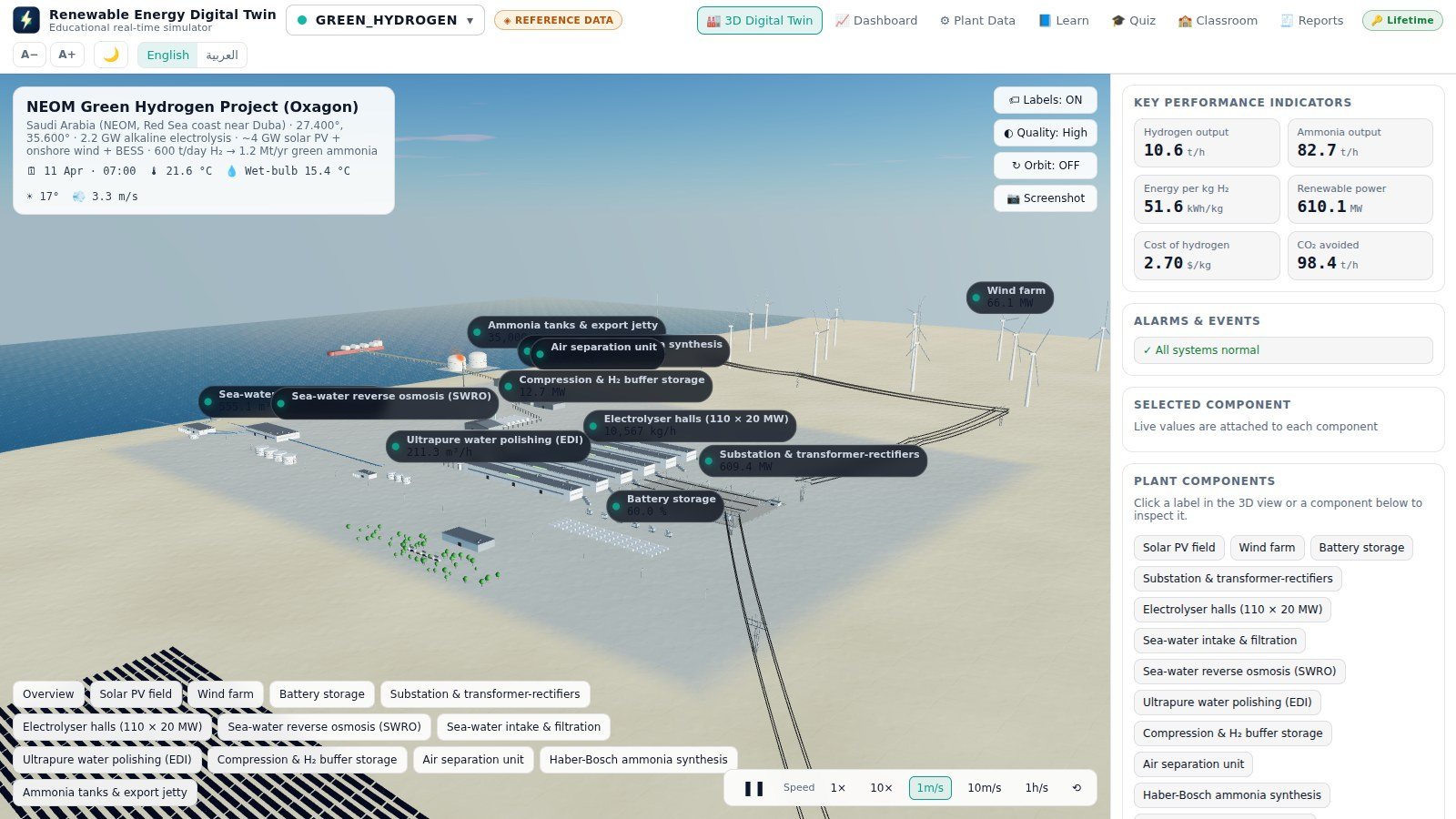
A 3D scene built from the plant's real capacity, unit count, technology and location, driven by a simplified physics simulation with the sun in its true position.

Exams & practice

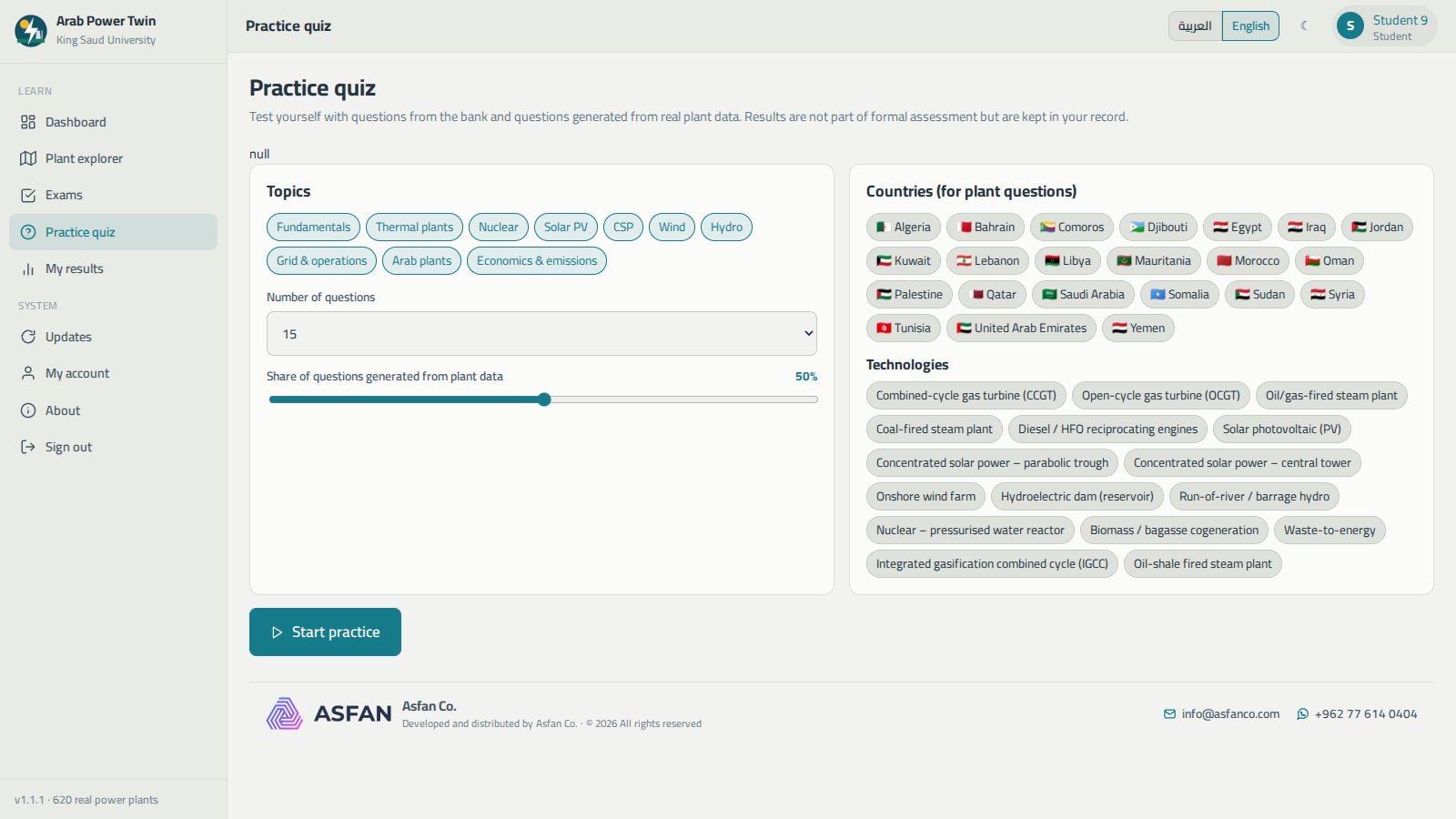
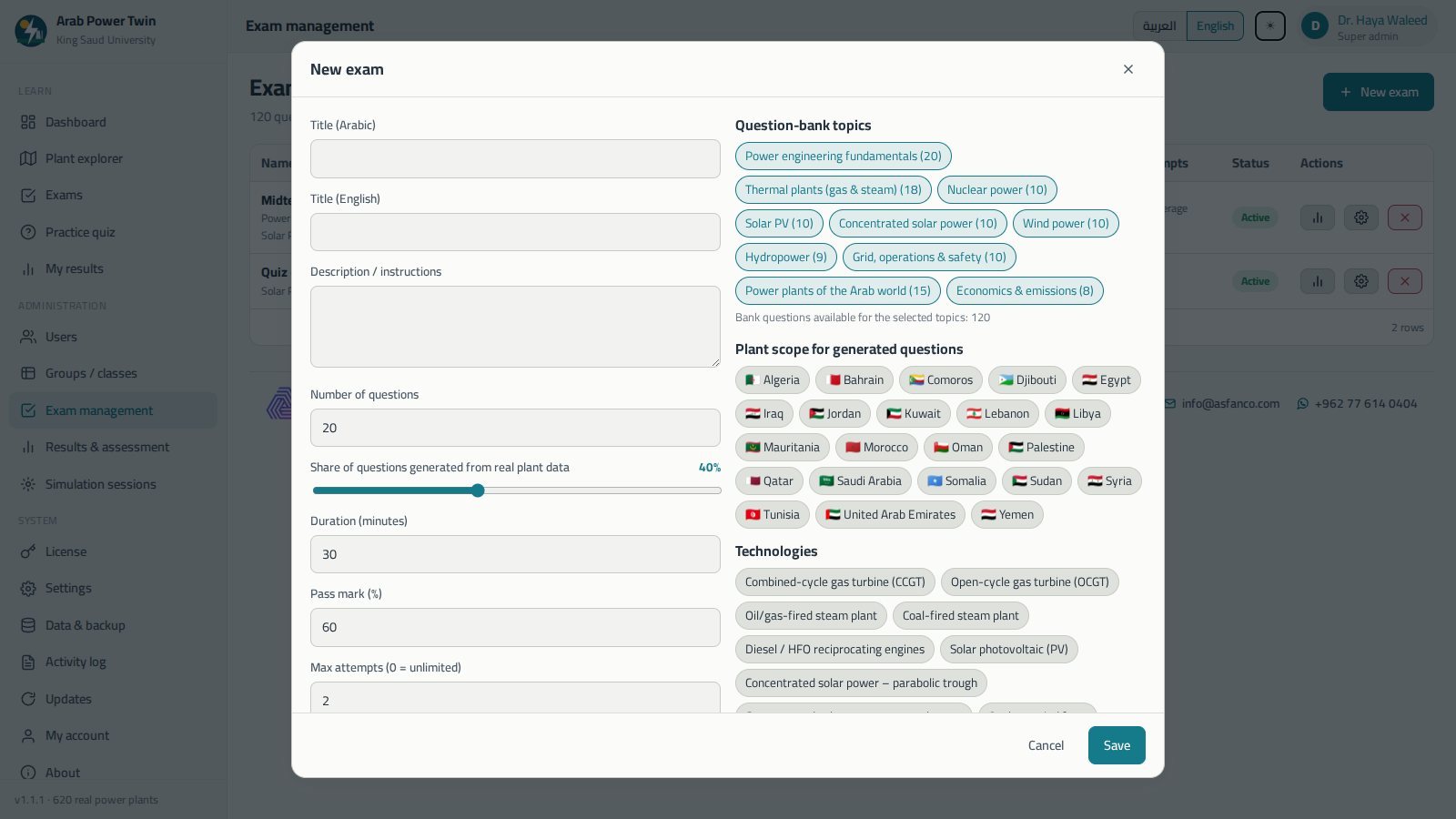
A bilingual question bank plus questions generated from real plant figures, timed formal exams with attempt limits, and informal practice quizzes with instant grading.

Results & assessment

Statistics, score distributions, correct answers by topic, per-student reports, and CSV, JSON and PDF export.

Administration

Users and roles, class groups, CSV student import, licensing, a shared data folder for university labs, backups and an activity log.

A closer look

Every screen, explained

Plant explorer

620 plants on one offline map

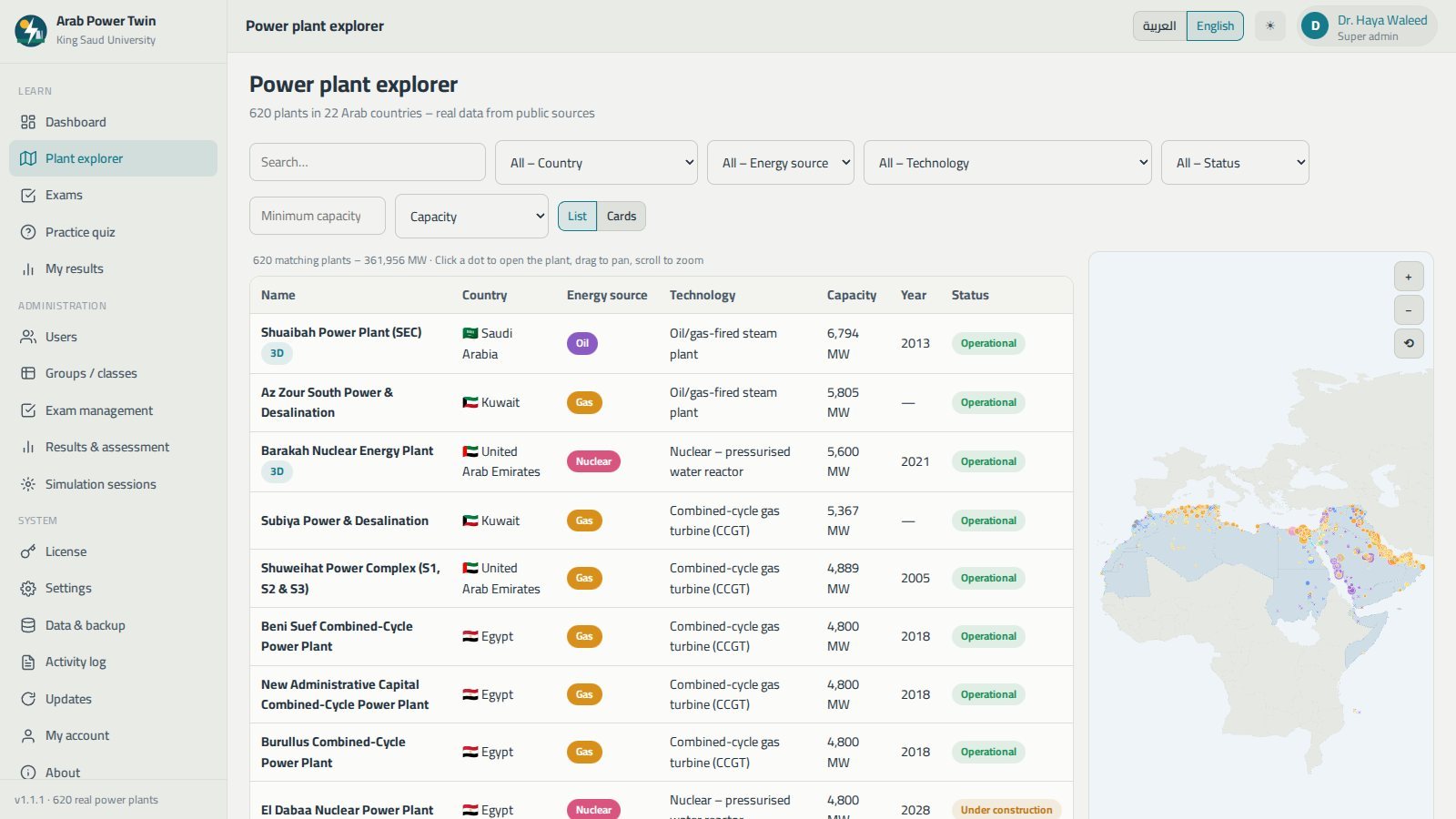
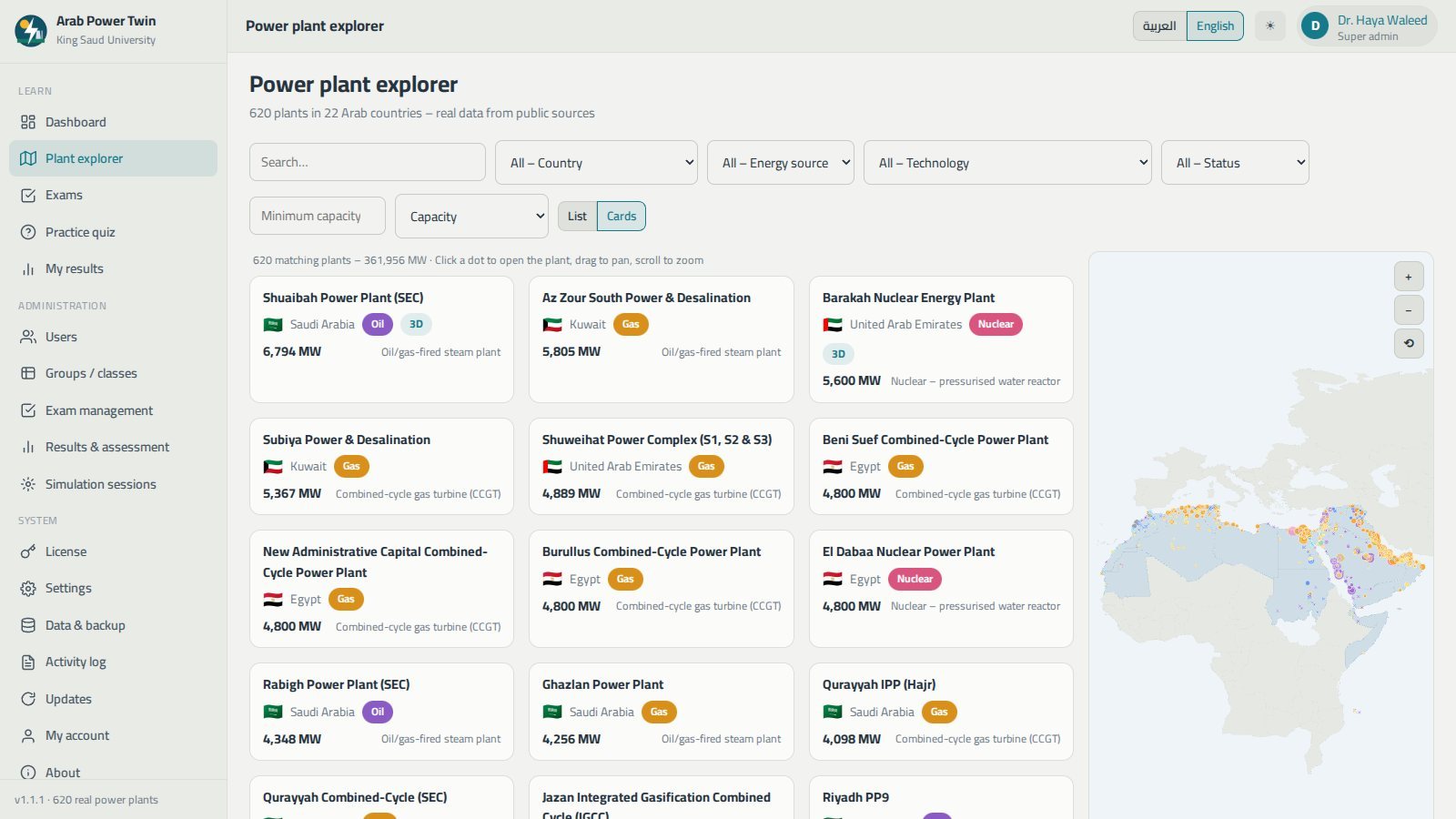
The explorer lists every plant with its name, country, energy source, technology, capacity, commissioning year and status, next to a map of the Arab world where each dot is a plant — coloured by energy source and sized by capacity. It all works without an internet connection.

  • Search by part of a plant name in Arabic or English.
  • Filter by country, energy source, technology, status and minimum capacity — the map and the list update together.
  • Sort by capacity, name or commissioning year, and switch between a list and a card view.
  • A running line shows how many plants match the current filters and their combined capacity.
  • Click a dot to open a plant, or click a country to filter the list down to it.
The Arab Power Digital Twin plant explorer: a table of power plants beside an interactive map of the Arab world
620 plants in 22 countries — 361,956 MW matching, before any filter.
Filtering the plant explorer by Saudi Arabia and gas, which narrows both the list and the map
Filtering by country and energy source narrows the list and the map together.
Plant pages

A data sheet for every station

Each plant gets a full page: country, technology, capacity in MW, status, commissioning year, owner or operator and the quality of the data behind it — verified, WRI GPPD or approximate.

  • Key facts: typical efficiency, typical capacity factor, emission factor, recorded or estimated annual generation in GWh, and coordinates.
  • A plain explanation of how that technology works and what its main components are.
  • Notes about the plant and a link to the original data source.
  • The rest of the complex, when the plant belongs to one like Jebel Ali or Ras Laffan, and the nearest plants with distances in km.
  • Two buttons at the top: run the digital twin, or start a practice quiz generated from this plant's own data.
The plant page for Shuaibah Power Plant in Arab Power Digital Twin, with the overview, key facts, technology explanation and estimated generation
Shuaibah, Saudi Arabia — overview, key facts and the technology explained.
The digital twin

Run a real Arab power station

The heart of the program. The 3D scene is built from the plant's actual capacity, number of units, technology and location, and driven by a simplified physics model in real time or at up to 1800× speed. The lighting follows the sun's true position for that site, windows light up at night, chimney plumes rise, rotors and fans turn, and panels and mirrors track the sun.

  • Live indicators: output in MW, grid demand, grid frequency and efficiency — plus technology-specific values such as fuel consumption and CO₂ for thermal plants, reactor thermal power and primary-loop temperature for nuclear, irradiance and cell temperature for solar, wind and rotor speed for wind, reservoir level and discharge for hydro.
  • Controls for the load setpoint, ambient temperature, cloud cover, dust, wind speed and grid demand — plus a "clean the panels" option for solar plants.
  • A unit list showing each unit's state — running, starting, stopping, off or tripped — with buttons to start, stop and reset a trip.
  • A sea for coastal plants, terrain for inland ones, and a badge saying whether the model is plant-specific or generic for the technology.
The digital twin page of Arab Power Digital Twin showing cumulative performance indicators and the output and efficiency trend charts
Cumulative KPIs and the output-versus-demand and efficiency trends.
Training scenarios

Break the plant on purpose, then watch it recover

One click applies a training event: a sudden unit trip, a 48 °C heatwave, a dust storm, a strong wind gust or a surge in demand. The indicators and alarms respond exactly as you would expect them to, and "Clear scenario" returns the plant to normal.

  • Alarms and events with their simulation time: frequency deviation, high vibration, high exhaust temperature, soiling, wind above cut-out, a full or low reservoir, start-up, synchronisation and trip messages.
  • Session KPIs: energy delivered, session capacity factor, availability, number of trips and cumulative fuel and CO₂.
  • End session & save report stores the whole session in the student's record; leaving the page after twenty seconds saves it automatically.
  • Instructors then review every session on the Simulation sessions page — which makes operating skill itself assessable.
The sudden unit trip scenario in Arab Power Digital Twin, showing the tripped unit, the alarm and the dip in grid frequency
Sudden unit trip: unit U2 is out, and the frequency dips below 49.9 Hz.
Exams & practice

Two question sources, one gradebook

Formal exams are assigned to class groups with a timer, a pass mark and an attempt limit. Alongside the bilingual question bank of ten topics, the program generates questions from the real plant database — capacity, country, technology, commissioning year, and energy, fuel and emission calculations — so every cohort gets fresh, factual questions.

  • Every student receives a different order of questions and options from the same specification.
  • Answers save automatically — close the program and resume where you stopped, as long as time remains.
  • Correct answers are never sent to the student's computer before submission.
  • The result shows the score, the percentage, pass or fail, the time taken and performance by topic — with a full answer review and explanations when the instructor allows it.
  • A certificate or PDF report can be printed from any result.
The exam screen in Arab Power Digital Twin with the countdown timer, numbered question navigation and four answer options
Timer, numbered navigation, and four options per question.
The answer review in Arab Power Digital Twin showing the student's answer, the correct answer and an explanation for each question
Answer review: your answer, the correct one, and why.
Results & assessment

The whole cohort on one page

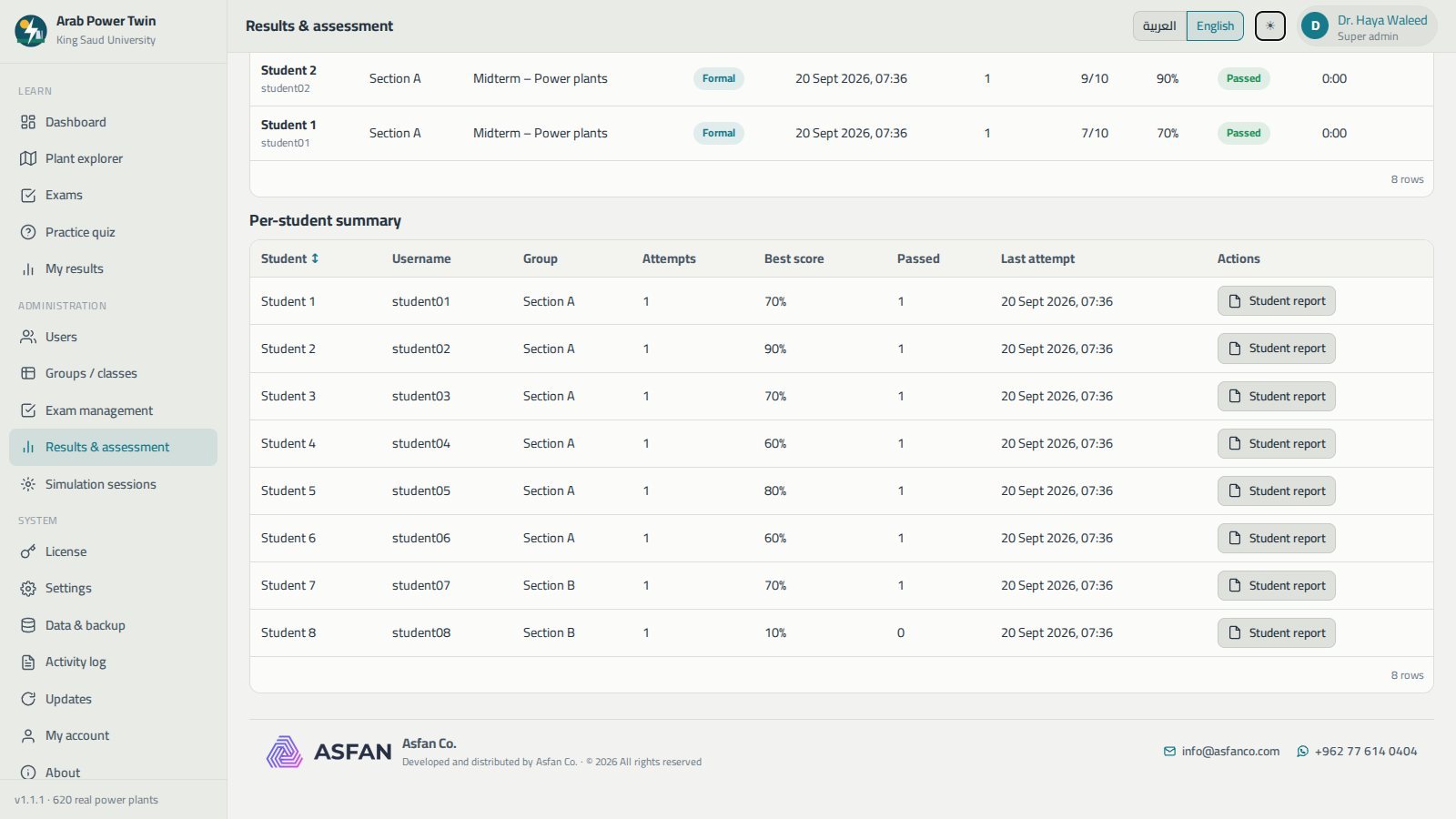
Every attempt by every student in one place. Filter by exam, group, student or kind — formal or practice — and the statistics update with it: number of attempts, mean, median and pass rate.

  • Charts of the score distribution, the share of correct answers by topic, and the average by exam.
  • A per-student summary with attempts, best score and last attempt, and a Student report button that prints a PDF of their results and simulation sessions.
  • Export the filtered table as CSV — which opens in Excel with Arabic intact — or as JSON.
  • Click any row to open the full detail of that attempt.
The Results and assessment page in Arab Power Digital Twin with filters, statistics and charts of the score distribution and correct answers by topic
Filters, statistics and charts across every attempt.
The simulation sessions log in Arab Power Digital Twin listing each student's plant, duration, energy generated, capacity factor and trips
Simulation sessions: who ran which plant, for how long, and how well.
Roles & administration

Set up a whole faculty in an afternoon

Three roles keep responsibilities clean. The super admin — the department head or course professor — manages everything. Instructors add students, create groups and exams and read all results. Students explore, simulate, take their exams and see only their own results.

  • Import a whole class from a CSV file exported from Excel — missing groups are created automatically, and the import reports what was created and what was skipped, and why.
  • Groups and class sections for assigning exams and filtering results.
  • Suspend an account instead of deleting it: it can no longer sign in, but its results are kept.
  • A full JSON backup and restore, with merge or overwrite, for moving to another computer or a new term.
  • An activity log of sign-ins, user and exam changes and licence activations.
User management in Arab Power Digital Twin: a table of all accounts with role, group, student number, last sign-in and status
Every account with its role, group, student number and status.
The CSV import dialog in Arab Power Digital Twin for adding a whole class of students at once
Paste or pick a CSV and add a whole section at once.
University labs

One shared folder, every lab computer

Install and activate the program on each machine, then point them all at one shared folder on the university server. The instructor sees every student and every result from any computer in the lab — with no database and no server software to run.

  • Each record is saved as its own file, so several computers can work at the same time safely.
  • License seats are counted per data folder, so a shared account counts once.
  • If the shared folder is unreachable the program falls back to the local folder and shows a notice, then picks up again when the network returns.
  • Add the students once and they can sign in from any machine.
The settings page of Arab Power Digital Twin showing the organisation name, the shared data folder and the update options
Point the data folder at the network and the whole lab shares one set of records.
The data and backup page of Arab Power Digital Twin with record counts and the export and restore buttons
One JSON file holds every record — export it at the end of each term.
Coverage

Sixteen technologies, modelled individually

Each technology has its own physics, its own indicators and its own 3D scene — a combined-cycle plant does not behave, or look, like a hydro dam.

  • Combined-cycle gas turbine (CCGT)
  • Open-cycle gas turbine (OCGT)
  • Oil/gas-fired steam plant
  • Coal-fired steam plant
  • Diesel / HFO engines
  • Solar photovoltaic
  • CSP — parabolic trough
  • CSP — central tower
  • Onshore wind farm
  • Hydroelectric dam
  • Run-of-river / barrage hydro
  • Nuclear — pressurised water reactor
  • Biomass
  • Waste-to-energy
  • IGCC
  • Oil-shale steam plant
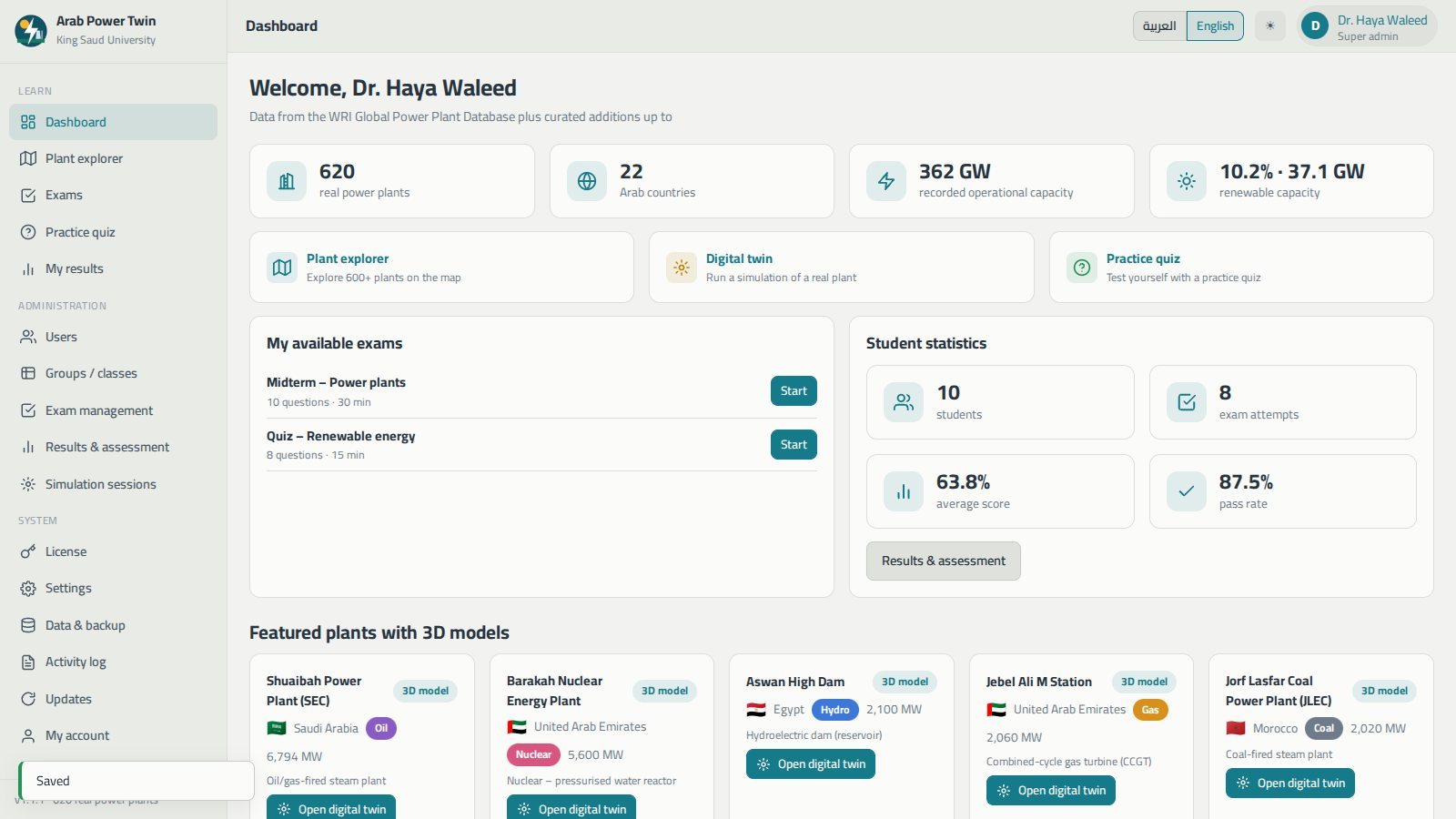
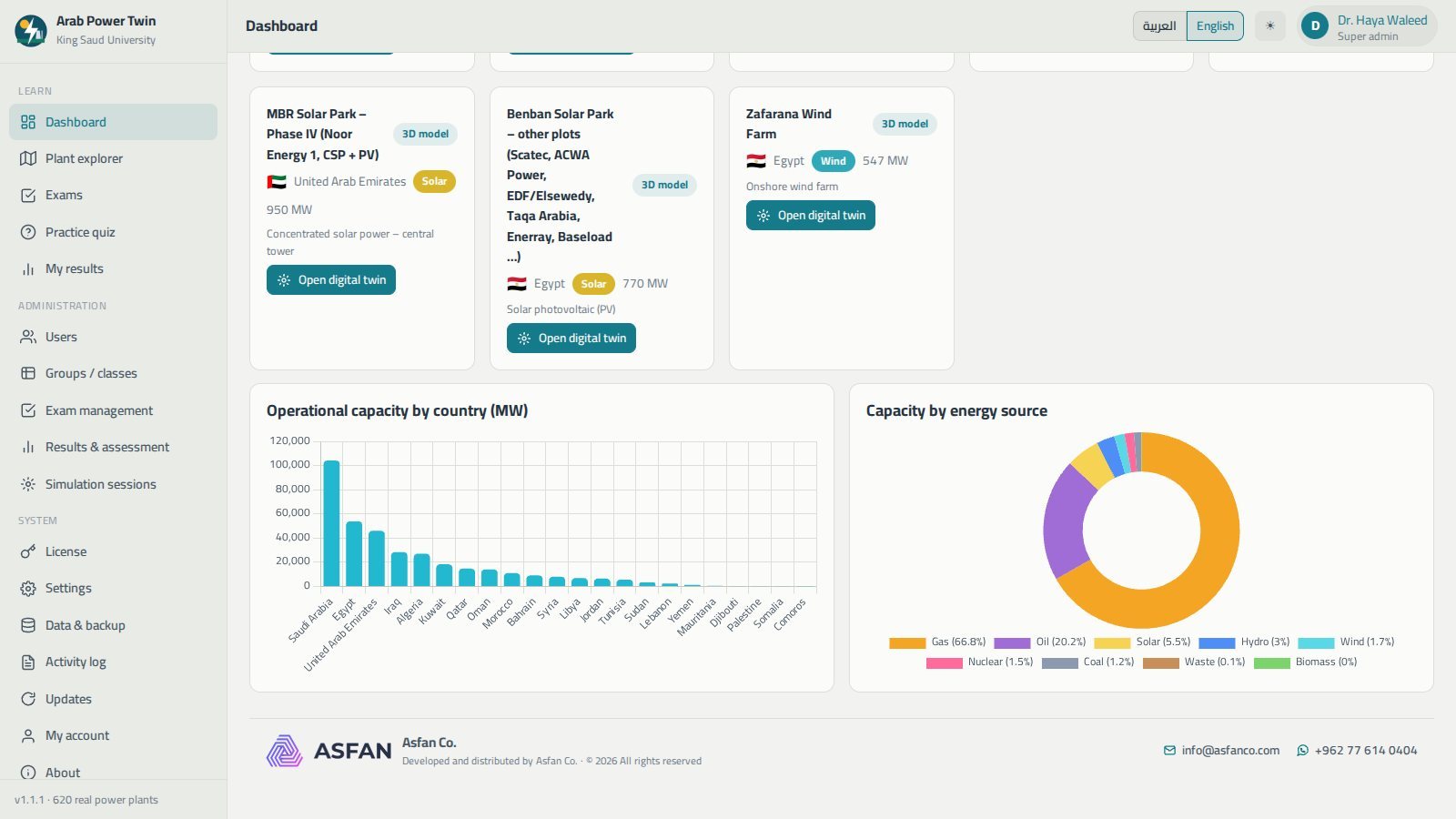
The Arab Power Digital Twin dashboard with statistic cards for real plants, Arab countries, operational capacity and renewable share, plus featured plants with 3D models
The dashboard: 620 plants, 22 countries, 362 GW recorded, and the featured plants with bespoke 3D models.
Screenshots

See it before you install it

Real screens from version 1.1.1.
How it works

From installer to a working class

No administrator password, no database, no server — and nothing you do during the trial is lost when you activate.

Install

Run ArabPowerTwin-Setup.exe, choose Arabic or English and keep the default folder. It installs for the current Windows user only.

Activate

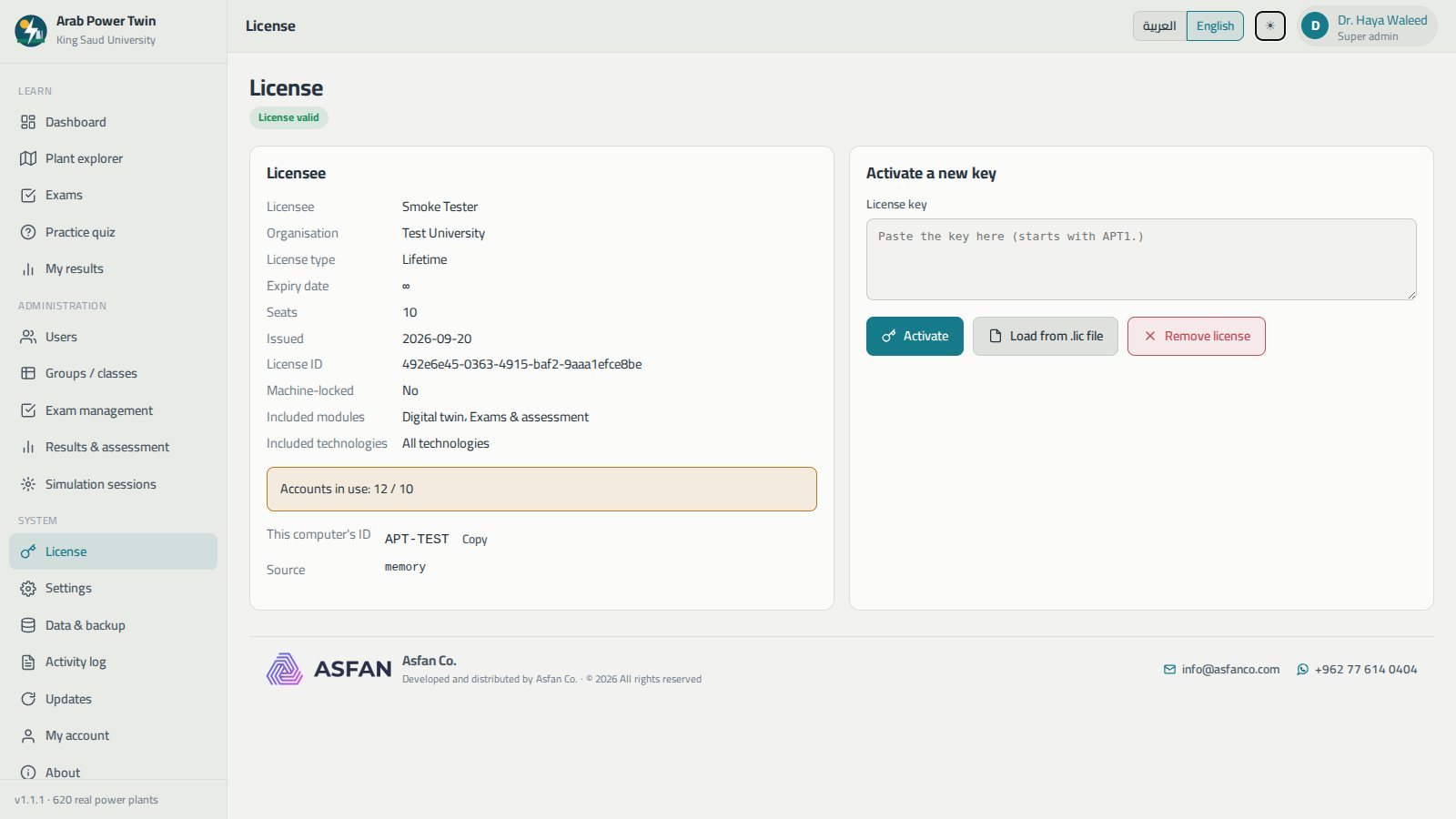
Paste the key we send you — it starts with APT1. — or load the .lic file. It is verified on the computer itself, with no internet needed.

Create the super admin

Enter your institution's name and create the account that will manage users, groups, exams and the license.

Add your students

Add them one by one, or import a whole section from a CSV file — then assign your first exam.
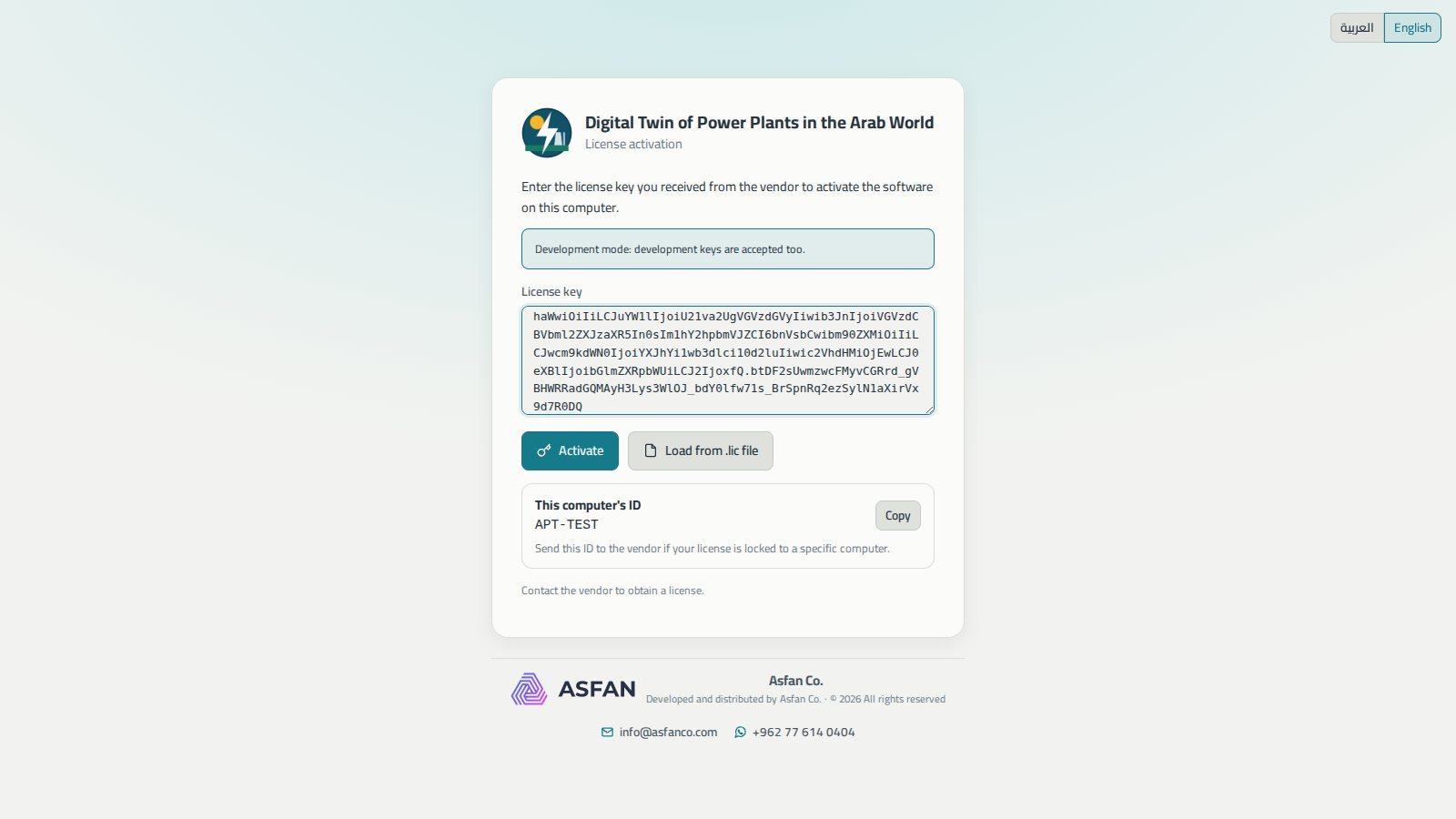
The Arab Power Digital Twin license activation screen at first start, with the key box, the Load from lic file button and this computer's ID
Activation at first start, with this computer's ID and a copy button.

What the 14-day trial gives you

The trial starts on first install and needs no key, no payment details and no account.

  • A selection of the program's modules, enough to evaluate it for your faculty
  • Both interface languages
  • The remaining modules and technologies unlock when a license key is entered
Start the free trial
Licensing

Monthly or Annual — your choice

A license sets the number of seats, which modules are included — digital twin and/or exams — and which technologies are covered.

Not sure yet? Install the 14-day trial first — no key, no payment, no account.

Download Trial

Monthly

Time-limited access, renewed every month.

Contact us

for current pricing

  • Both modules: digital twin and exams & assessment
  • Your chosen number of seats across all roles
  • Your chosen technologies, or all sixteen
  • Free updates while the subscription is active
  • Ideal for a single semester or a pilot
Request Monthly License

Equipping a university lab? Tell us how many machines and students you need — contact us or message us on WhatsApp at +962 77 614 0404.

System requirements

Before you install

Operating system
Windows 10 or 11, 64-bit
Processor & memory
Dual-core or better, 8 GB RAM (16 GB recommended for labs)
Graphics
Any adapter with WebGL 2. The 3D scene is smoother on a discrete GPU
Disk space
About 700 MB for the program and its data
Screen
1366 × 768 minimum · 1920 × 1080 recommended
Internet
Not required to run — used only to check for and download updates
Administrator rights
Not needed — installs for the current user
Current version
1.1.1, with automatic updates

Full user manual

48 pages covering every screen, licensing and setting up a university lab.

FAQ

Common questions

Engineering faculties, technical institutes and training centres teaching power generation, plus utilities training new operators. It has three roles: a super admin who manages everything, instructors who run classes and exams, and students who explore, simulate and sit their exams.

The database is built on the WRI Global Power Plant Database, with curated recent plants compiled from operator and utility publications such as DEWA, EWEC, SEC, EEHC, MASEN and Nawah, plus IRENA data and press releases. Each plant page shows the quality of its data and links to the original source. The base map is Natural Earth.

No, and it is not meant to be. This is an educational product: the models are simplified and use typical parameters for each technology, so the numbers may differ from a real plant's. It is built for teaching how a plant responds to changes in load, weather and faults — not for operational use.

Neither. The map, the database, the simulations and the exams all run offline, and the license is verified on the computer itself. Internet is used only to check for and download updates. A lab shares its data through an ordinary Windows network folder, not a database server.

Create a shared folder on the university server with read and write access for the students' Windows accounts, install and activate the program on every machine with the same key, then point each one at that folder under Settings → Shared data folder. Add the students once and they can sign in from any computer. Chapter 16 of the manual walks through it.

Correct answers are never sent to the student's computer before submission, and every student receives a different order of questions and options generated from the same specification — so two neighbours do not see the same exam. Instructors also choose whether answers and explanations are shown at all after submission.

Four things: its term — monthly or annual — the number of seats, which modules are included (digital twin and/or exams), and which technologies are covered. Plants on technologies outside your license can still be browsed, but show a lock badge and cannot be simulated. A license can optionally be bound to one computer.

Nothing. Accounts, exams, results, simulation sessions and the license are untouched by an update, and uninstalling the program does not delete them either. We still recommend exporting the full JSON backup at the end of each semester and before changing the data folder.